To share a camping trip plan with your partner in AussieCamps, open the trip, tap Share and choose Collaborate: you both add, reorder and tick off stops, and changes show up on each other's phone within seconds. There is no account or login, because it uses the iCloud already on your iPhones. We make AussieCamps, and here are all the ways to share a trip, from planning together live to a link for the family back home. To plan as a pair, the AussieCamps app lets you both edit the same trip live through iCloud, with no account to set up.
Share a camping trip plan live with Collaborate
Open the trip, tap Share and choose Collaborate, then send the invite to your partner by message. From then on it is one trip on two phones.
You can both add stops, drag them into a new order, tick them off as you go and edit the notes. Whoever is in the passenger seat can add tonight's campground while the driver's phone stays on the dash, and it is on both phones within seconds.
- Share, then Collaborate
- One trip on two phones
- Changes in seconds
Share a collection for the wish list
Collections work the same way. Tap Share on a collection, choose Collaborate, and build a shared wish list: beaches for next summer, dog-friendly spots for the long weekend, or a list of national parks you both want to tick off.
When it is time to go, pick the winners from the collection and add them to a trip.
- Collaborate on collections too
- Build a shared wish list
- Turn it into a trip
No account and no login to share
Sharing in AussieCamps runs on iCloud, the same account your iPhone already uses for photos and backups. There is nothing to sign up for, no password to remember and no code to wait for.
Coming from WikiCamps, where many users say they keep getting logged out, that is one less thing to sort out before you hit the road.
- Runs on your iCloud
- Nothing to sign up for
- No logouts on the road
Send a copy to family back home
Not everyone needs to edit the trip. For the grandparents, the friends you are meeting or the boss who wants to know when you are back, tap Share and choose Send copy.
It makes a link anyone can open in a web browser, on a phone or a computer, to see your trip. If they have AussieCamps, they can save the trip to their own trips. It is also handy for looking over a big trip on a laptop.
| Way to share | Best for |
|---|---|
| Collaborate | Planning with your partner, live on both phones |
| Send copy | Family and friends, or viewing a trip on a laptop |
| Share as image | A group chat or a post about your trip |
| Share a place | Sending one campground, with a photo preview |
| Sync to calendar | Seeing the trip in your own calendar |
- A link anyone can open
- Works in any web browser
- Save it to their own trips
Share the trip as a picture
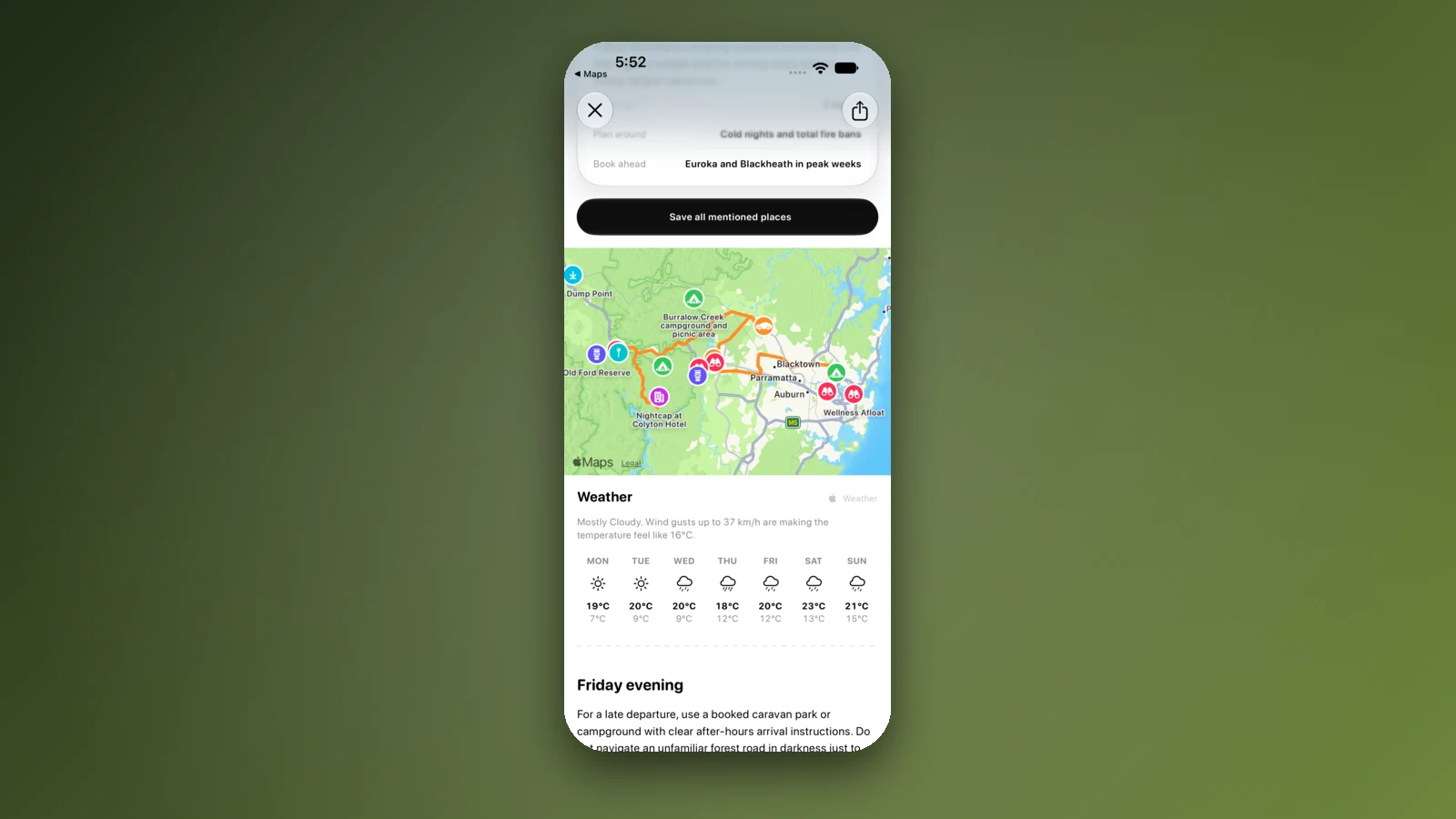
Share as image turns the trip into one picture with the route, stops, dates and nights. Drop it in the family group chat, send it to the mates you are meeting halfway, or post it before you leave.
It is the quickest way to answer “so where are you going?” without a long message.
- Route, stops, dates and nights
- Perfect for a group chat
- One picture says it all
Send a single place
Sometimes you only need to send one spot, like tonight's campground or a dump point on the way out of town. Open the place and share it: the message shows its page with a photo preview, and anyone who has AussieCamps lands straight on it in the app.
Your own spots go in too. Drop a pin, tap Add to trip, and it lands in the trip you are planning together.
- Place links with a photo preview
- Opens straight in the app
- Your own spots in the shared trip
Keep it in your calendar and on your own phones
Add dates to the trip and turn on Sync to calendar, and the trip lands in your calendar beside work rosters and school pick-ups.
If you use two iPhones on one Apple Account, everything you save syncs between them on its own.
- Sync to calendar
- Your own iPhones sync
- Synced on your own phones
Plan the next trip together
Start a trip, tap Share, choose Collaborate, and plan it together from tonight. AussieCamps is free to download, with in-app purchases, and has no ads.
Wherever the trip takes you, the sign at the campground and the land manager's fire and closure notices decide where you can stop.
- Free to download
- Share, then Collaborate
- Signs on the ground decide
Places along the way
Common questions
Can two people plan a trip together in AussieCamps?+
Yes. Open the trip, tap Share and choose Collaborate. You both add, reorder and tick off stops and edit notes, and changes show up within seconds.
Do we need an account to share a trip?+
No. AussieCamps has no account or login. Collaborate uses the iCloud already on your iPhones.
Can family see our trip without the app?+
Yes. Send copy makes a link anyone can open in a web browser to see the stops, dates and notes. If they have the app, they can save the trip to their own trips.
Does AussieCamps sync between my own phones?+
Yes. With iCloud on and the same Apple Account, your saved places, collections, pins and trips sync privately between your iPhones.
How do I send my camping itinerary to someone?+
Open the trip and tap Share. Choose Send copy for a browser link, or Share as image for a picture of the route, stops, dates and nights.
Take it on the road
Save the stops. Plan the whole trip.
Build an ordered route from saved places, calculate the distance and keep dates, notes and to-dos attached.