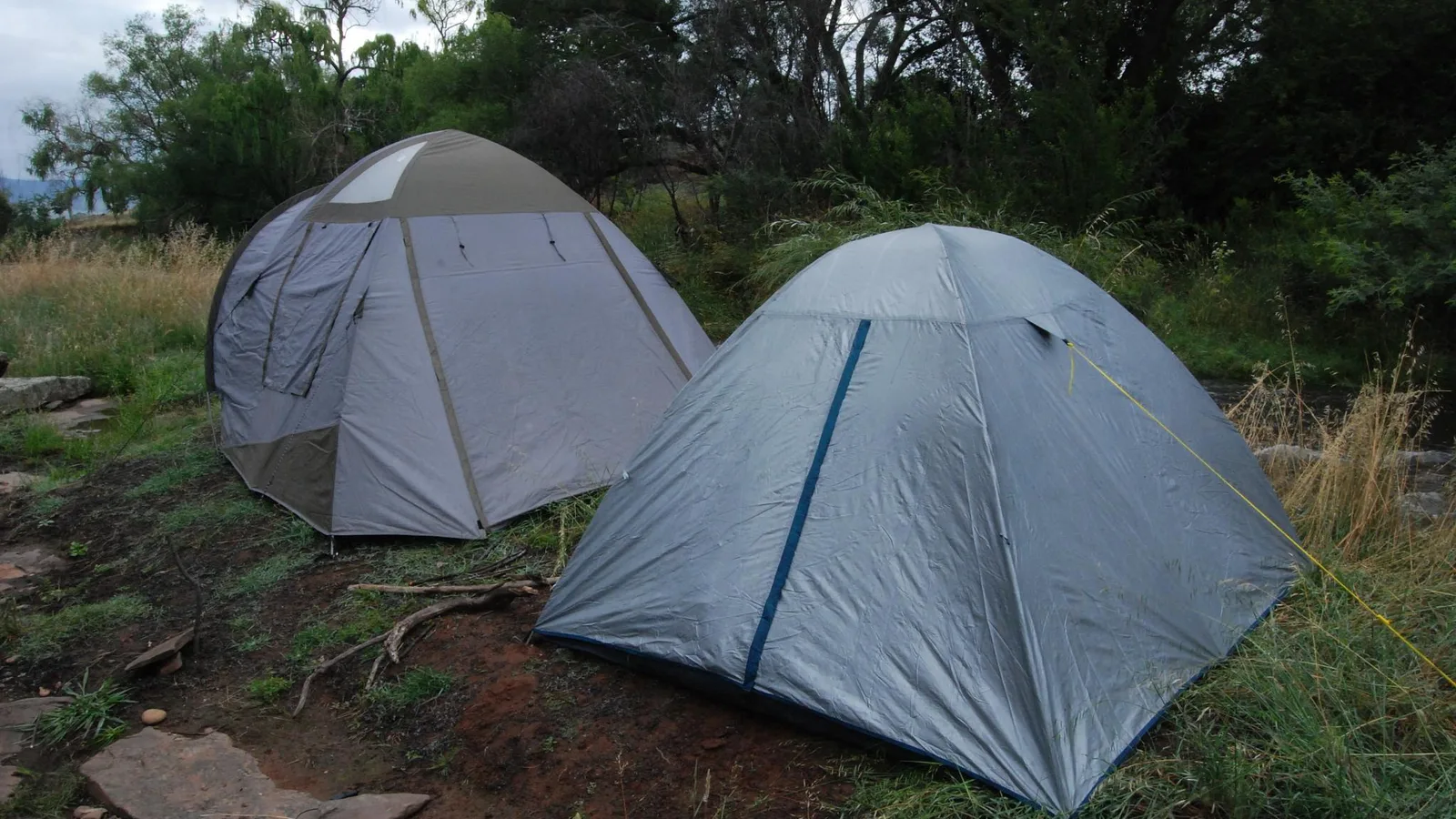
Switching from WikiCamps to AussieCamps takes most people about 15 minutes: search your favourite places and mark them, then rebuild your next trip, adding any spot by name, address or a pin you drop. There is no account to set up, so you can start the moment the app is installed. We make AussieCamps, and here is the quickest way across. To make the move quickly, the AussieCamps app opens straight to the map with no account, and your saved places and trips sync through your own iCloud.
Why campers switch from WikiCamps
Many WikiCamps users find the new version fiddly, get signed out at camp and see ads in an app they bought.
AussieCamps keeps it simple. No account, no ads, and it opens straight to the map: filter, tap a place, add it to a trip. It is independent too, not owned by a holiday park group, so free rest areas and national parks sit next to paid parks.
- No account and no ads
- Opens straight to the map
- Independent, with free stops shown
Before you switch: jot down your lists
Open WikiCamps one last time and screenshot your favourites and your next trip, or type the place names into your phone's Notes. Add the town beside each name, because a few campgrounds share names across states.
Do the urgent bits first: the trip you leave on next, with its booking numbers. The big wish list can wait for a quiet evening.
- Screenshot your lists
- Note the town for each place
- Next trip first
Where your WikiCamps favourites go
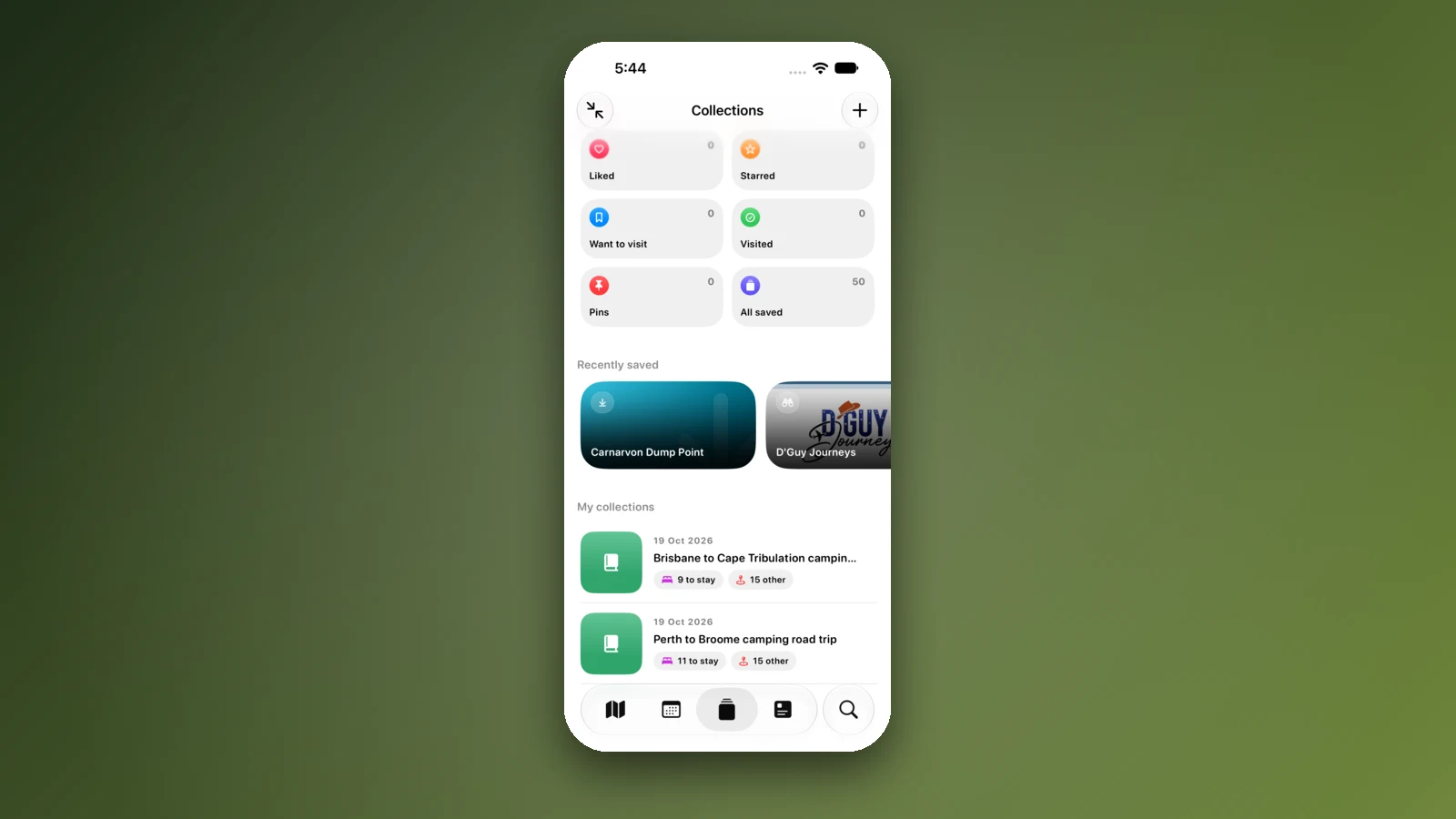
AussieCamps has four collections ready to go: Liked, Starred, Want to visit and Visited. Search a place, open it and tap the one you want. Your old site notes go into the place's private note, such as which bay is flattest or where the tap is.
Places you mark Visited also turn their regions green on the where-you've-been map in the You tab, which shows how much of Australia you have seen. It is a nice way to bring years of camping across.
| What you had in WikiCamps | Where it goes in AussieCamps |
|---|---|
| Favourite places | Liked, with the top few also Starred |
| Places you want to visit | Want to visit |
| Places you have stayed | Visited, which fills your where-you've-been map |
| Your own lists | Your own collections |
| Notes on a site | A private note on the place |
| Trips | Trips that start at Home and take any address or pin |
| Your own secret spots | Pins you drop and add to trips |
- Liked, Starred, Want to visit, Visited
- Old site notes become private notes
- Visited fills your map
Rebuild your next trip in minutes
Create a trip, tap Start at Home, and add the nights you have booked first. Add stop finds campgrounds and rest areas by name, your saved pins, your current location or any address, so every stop from your old trip has a way in.
Drag the stops into the order you will drive, give each one its arrival date, and paste booking numbers into its note. The distance and drive time of every leg appear as you go, so an overlong day stands out straight away.
- Start at Home
- Booked nights first
- Any stop by name, pin or address
Bring your own spots with you
Every camper has a few places that are on no list at all: a mate's property, a quiet bend in a river, the paddock behind a country pub. Drop a pin on the map and tap Add to trip, and it joins the route like any other stop.
Your saved pins stay ready for the next trip too, right there in the Add stop search.
- Drop a pin
- Add it straight to a trip
- Saved for next time
Find new favourites with filters
Once your old list is across, the filters help you find new spots. Two of the most asked-for filters, Dogs allowed and 4WD access, sit right up top. Free under Cost shows free rest areas and stops, and features like Toilets, Drinking Water, Showers and Caravan Sites narrow it down.
Pick a few at once and a place has to match all of them, so you only see spots that really suit you.
- Dogs allowed and 4WD access
- Free rest areas and stops
- All your picks must match
Bring your partner along
If you plan trips as a couple, open the trip, tap Share and choose Collaborate. From then on you share one trip: add stops, move them around, tick them off, and see each other's edits almost straight away. It runs on iCloud, so neither of you creates an account.
A second iPhone of your own on the same Apple Account syncs on its own, with every saved place, collection, pin and trip.
- Collaborate live on a trip
- No account for either of you
- Your other devices sync too
Make the switch today
AussieCamps is free to download, with in-app purchases, so install it, move your next trip across first, and let the rest of your places follow over a few evenings.
Wherever you stop, the sign at the site and the land manager's fire bans and closures come first.
- Free to download
- Next trip first
- Signs and closures first
Places along the way
Common questions
How do I switch from WikiCamps to AussieCamps?+
Install AussieCamps, search each of your favourite places and mark it Liked or Want to visit, then rebuild your next trip with Add stop. Any other spot can go in by its address or as a pin.
How long does it take to move my places and trips?+
Most people move their favourites and next trip in one sitting. Start with the trip you leave on next, and move the long wish list over a quiet evening.
How do I add my secret spots to a trip?+
Yes. Type the address into Add stop, or drop a pin on the map and tap Add to trip. It shows on the route with its distance and drive time like any other stop.
Will my saved places sync to my other iPhone?+
Yes. With iCloud on and the same Apple Account on both phones, your saved places, collections, pins and trips sync privately, with no AussieCamps account.
Do I need an account to use AussieCamps?+
No. There is no account, login or verification code: install it and the map is the first screen.
Take it on the road
Save the stops. Plan the whole trip.
Build an ordered route from saved places, calculate the distance and keep dates, notes and to-dos attached.